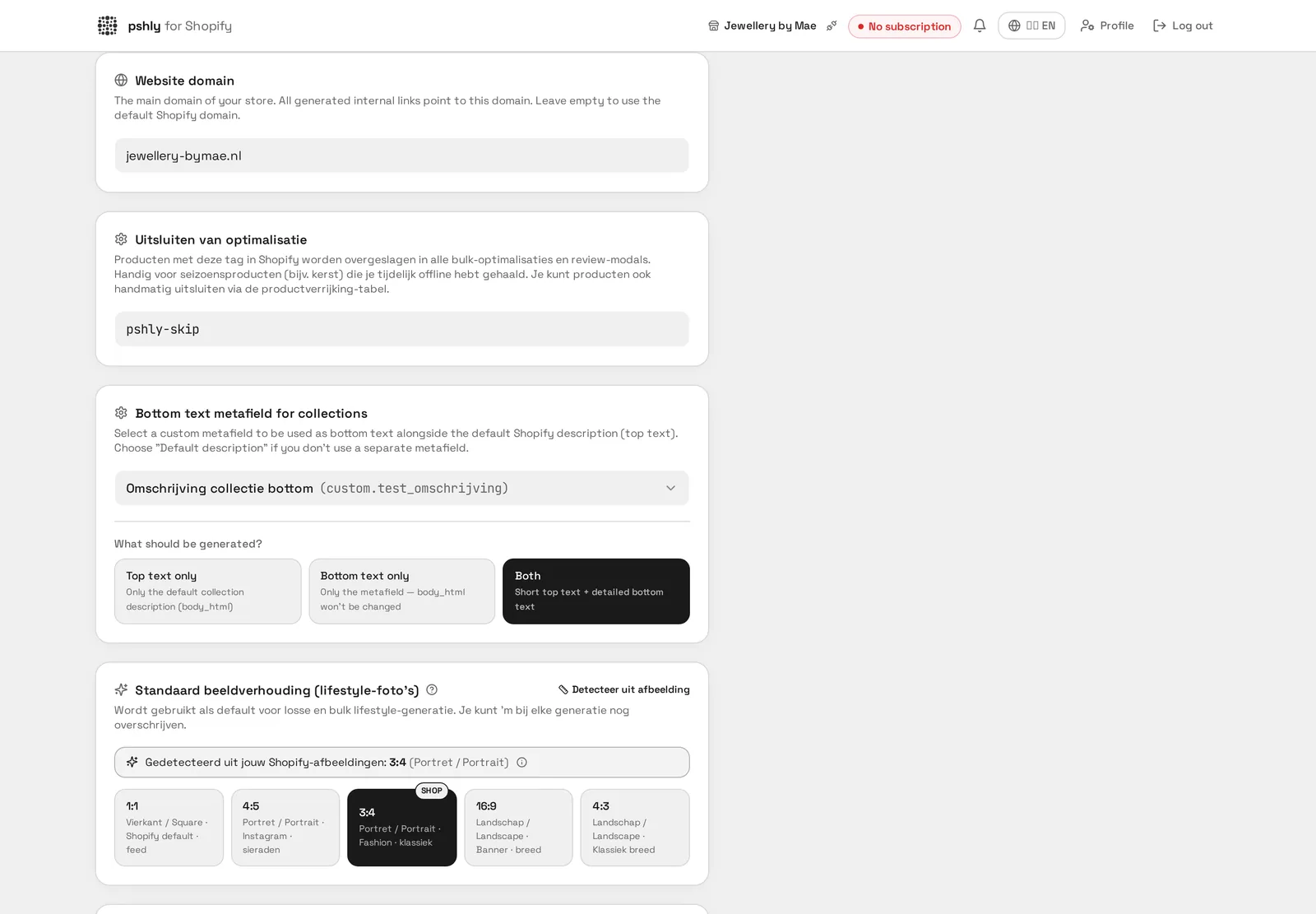
Not every product in your catalog benefits from ongoing optimization. A Christmas collection that's only active for eight weeks a year, a sold-out item that will never be restocked, or a temporary promotional product: optimizing these products costs unnecessary credits and can even be undesirable when you've deliberately left the original text as is. That's why pshly.ai offers two ways to explicitly exclude products from optimization.
Why excluding matters just as much as optimizing
Bulk enrichment is powerful, but powerful enough to also catch products you'd rather leave alone. Think of:
- Seasonal products that may get archived after the season and for which optimization no longer makes sense.
- Sold-out items that won't be restocked and therefore don't justify additional SEO investment.
- Products whose text was deliberately written by hand, for example for a collaboration with an influencer or brand partner, and shouldn't be overwritten.
- Test products or internal SKUs that aren't publicly visible and don't need optimization.
Without a way to explicitly exclude these products, you'd have to manually filter and remember which products to skip every time you run a bulk action — error-prone and time-consuming as the catalog grows.
The pshly-skip tag
The most scalable way to exclude products is through a Shopify tag. By default, pshly.ai uses the tag pshly-skip, but this name is customizable in the settings if you prefer a different convention that already fits your tagging structure. As soon as a product has this tag, it's automatically skipped in every bulk job, regardless of which filters or selections you use to start that job.
The big advantage of a tag-based approach is that you can manage exclusions at scale, even outside pshly.ai. You can, for example, add the tag directly in Shopify through a bulk editor, an automated flow, or as part of an existing seasonal process where products are tagged at the start of a season and untagged again at the end.
The manual toggle per product
For incidental cases — a single product you don't want included in the next bulk round — a tag can be overkill. That's why pshly.ai also offers a manual toggle directly at the product level. With one click, you mark an individual product as excluded from optimization, without having to switch to Shopify to add a tag. This is especially useful during daily work in the tool, for example when you've just manually updated a product and don't want a subsequent bulk job to overwrite that change.
Effect on bulk jobs
When you start a bulk job based on a filter or collection, excluded products are automatically removed from the selection before the job starts — they don't count toward the number of items to process and no credits are consumed for these products. This means you can confidently use broad filters, such as "all products in this collection", without worrying that excluded products get accidentally included.
Effect on review modals
Excluded products also don't show up in the individual review modals — for example when reviewing proposed title changes or collection suggestions. They simply don't appear in the list of proposals, so you never accidentally approve a change for a product you deliberately wanted to skip.
Real-world scenario: seasonal collection
A store with an annual Christmas collection tags all Christmas products with pshly-skip at the start of the season, so ongoing bulk optimizations on the rest of the catalog don't touch these products. After the season, when the products get archived or reactivated for the following year, the tag is removed or reapplied depending on the situation. That way, optimization effort stays focused on the products that are relevant year-round, while seasonal items stay out of the way without needing manual attention during every bulk action.
Real-world scenario: sold out and not restocked
For items that are sold out and won't be repurchased, there's no reason to spend credits on further optimization. By excluding these products through the manual toggle as soon as it's clear they won't be restocked, you prevent future bulk jobs from wasting time and credits on products that will disappear from the catalog soon anyway.
How to set this up
- Go to the settings page and check whether you want to keep the default tag name pshly-skip or change it to your own convention.
- Add the tag to products in Shopify that should remain structurally excluded, for example through a bulk editor or automated rule.
- Use the manual toggle at the product level for incidental, temporary exclusions.
- When setting up a new bulk job, check whether the expected number of products matches your estimate, as an extra check that exclusions are being applied correctly.
For a full overview of all settings, including tag configuration, see the documentation on settings.
Managing exclusions in practice
With a seasonal assortment it pays to treat exclusion as a fixed part of your yearly planning. At the end of a season, add the pshly-skip tag to the relevant products and remove it again when the next season starts. Because the tag lives in Shopify, you can handle this with a bulk edit or a Shopify Flow automation without opening pshly.ai.
At G&F Verpakkingen roughly 12% of the catalogue was permanently excluded: discontinued packaging sizes and customer-specific items with hand-written copy. That kept bulk runs smaller, faster and cheaper, and kept the review modal focused on products that actually mattered.
Excluding versus archiving
Excluding is not a replacement for archiving in Shopify. An archived product disappears from your storefront; an excluded product stays visible and sellable but is skipped by pshly.ai during content, price and collection jobs. Use exclusion for products that must stay live but keep their copy, and archiving for products you no longer sell at all.
Conclusion
Optimization is most valuable when applied deliberately. By consciously excluding seasonal products and sold-out items through the pshly-skip tag or a manual toggle, you keep bulk jobs efficient, avoid unnecessary credit consumption, and protect product text you want to leave untouched on purpose.
Want to experience how easy it is to set up exclusions yourself? Start free and configure your first exclusion rules within minutes.