Documentation

    Bulk & workflow

    Server-side bulk jobs, review modals, pricing, status and excluding products.

    1Server-side bulk jobs & progress

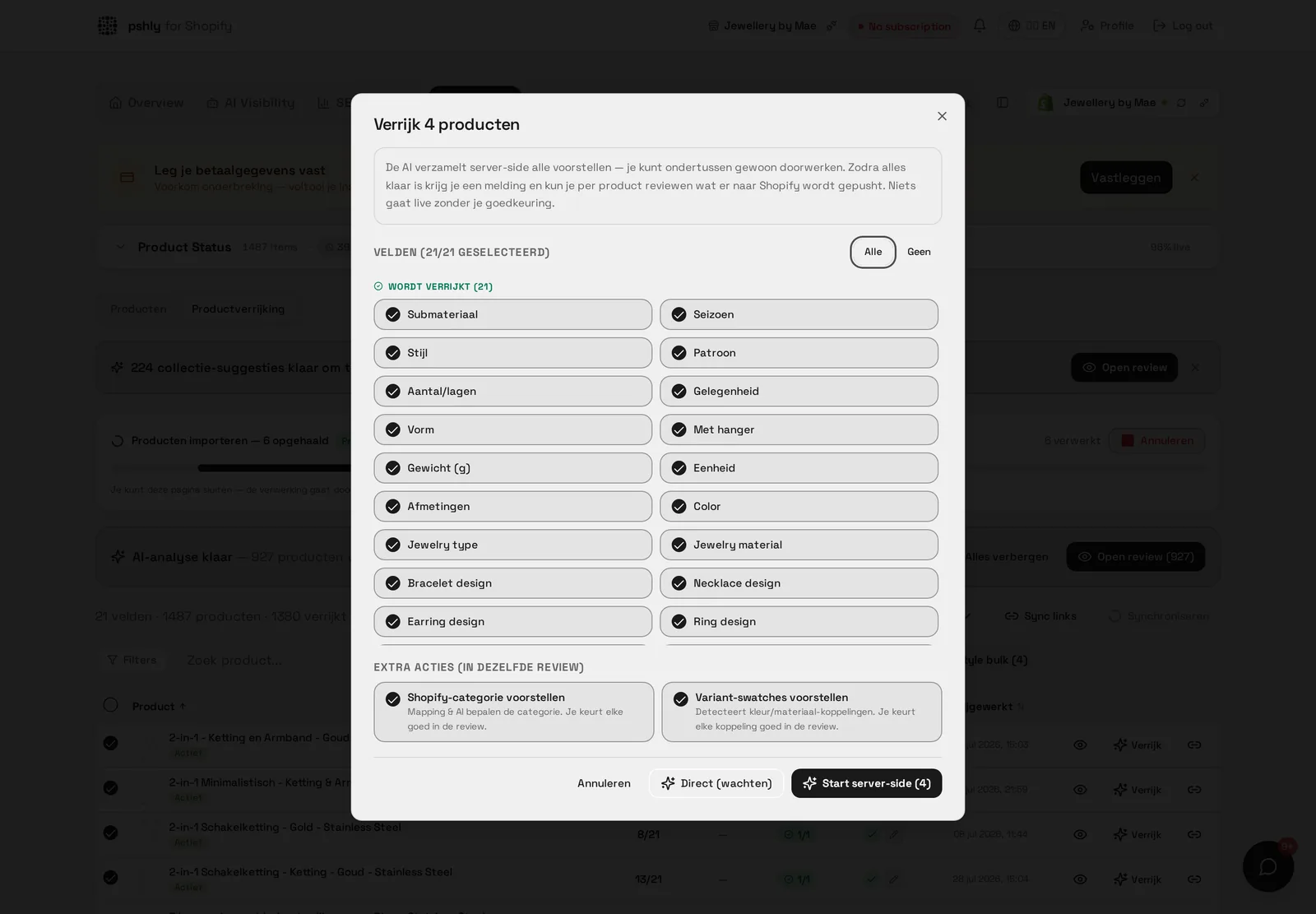
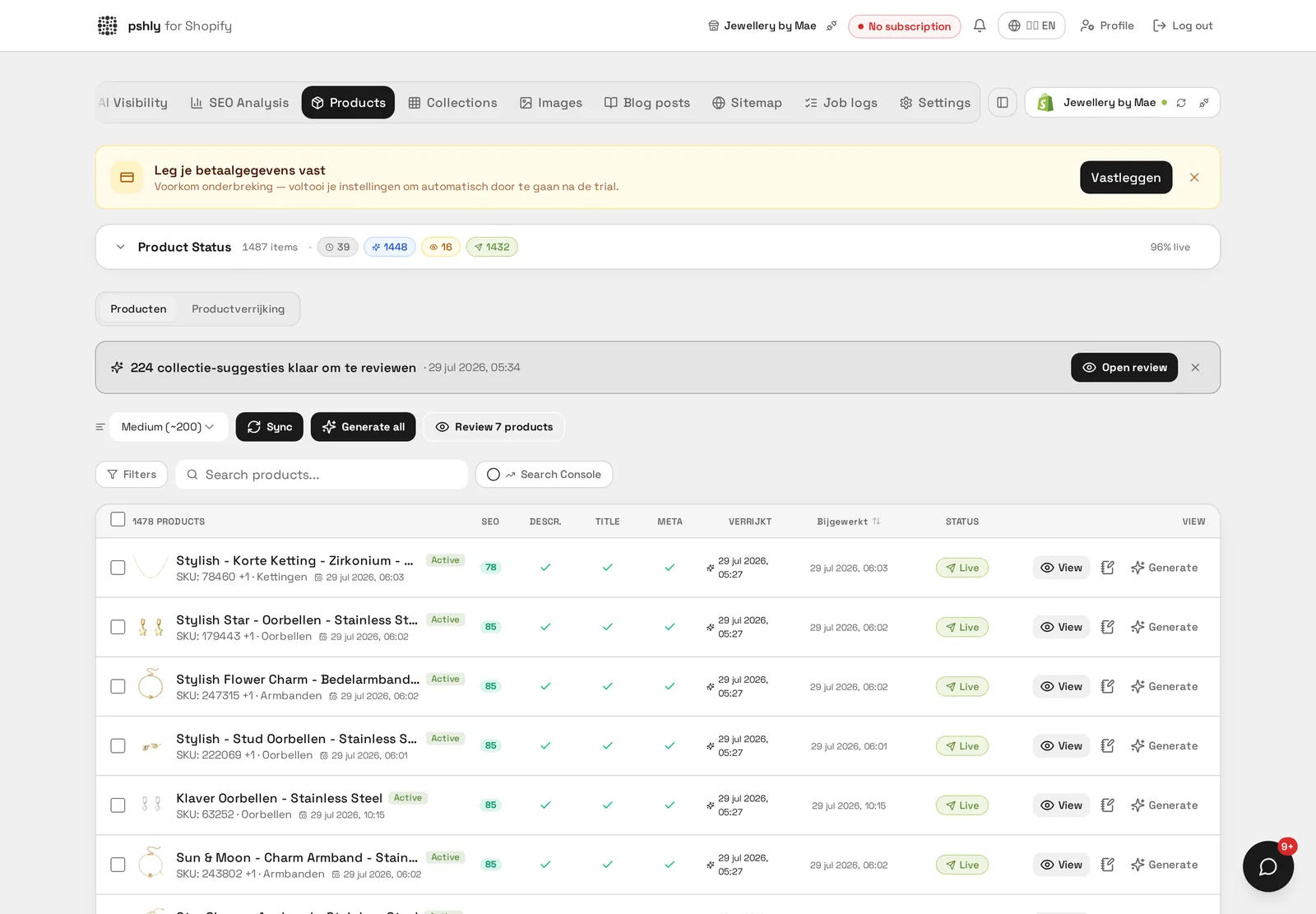
    All bulk actions run server-side. Once a job starts, our bulk worker takes over — you can close the tab and the job keeps running.

    • A realtime progress bar at the top of product enrichment shows processed items, errors and the job type.
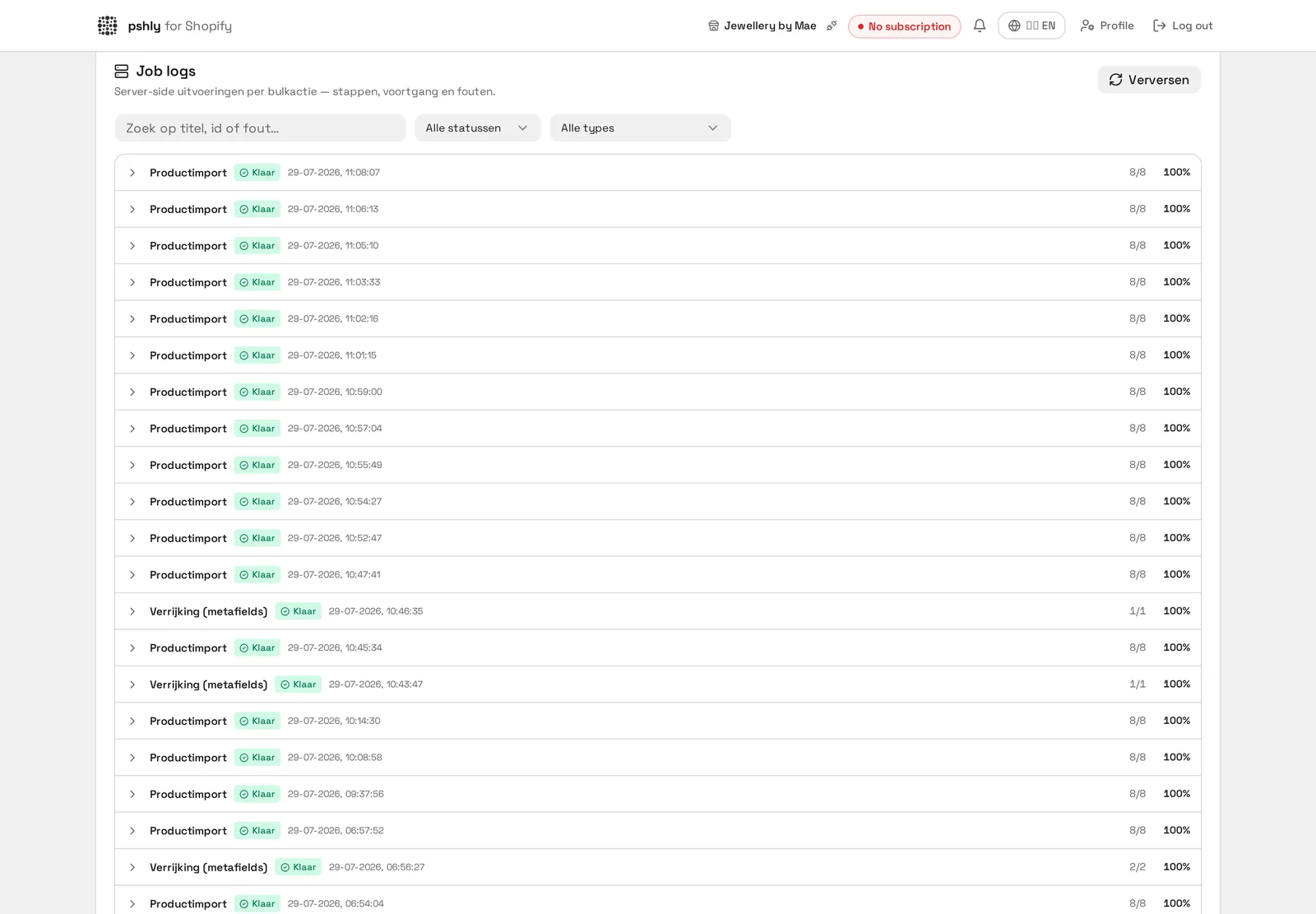
    • Job logs show per-product results: what succeeded, what was skipped and why.
    • Jobs deduplicate their product list, so a product is never processed twice.
    • When a job finishes, a Review button appears and stays available while batches await review.
    Server-side bulk jobs & progress

    Real-world example

    512 products in one job. The job runs in the bulk worker, not in your browser: close the tab or grab a coffee — the progress bar picks the state back up in real time.

    The job logs show per item whether it succeeded and which items were skipped (for example deleted in Shopify).
    2Review modals per job type

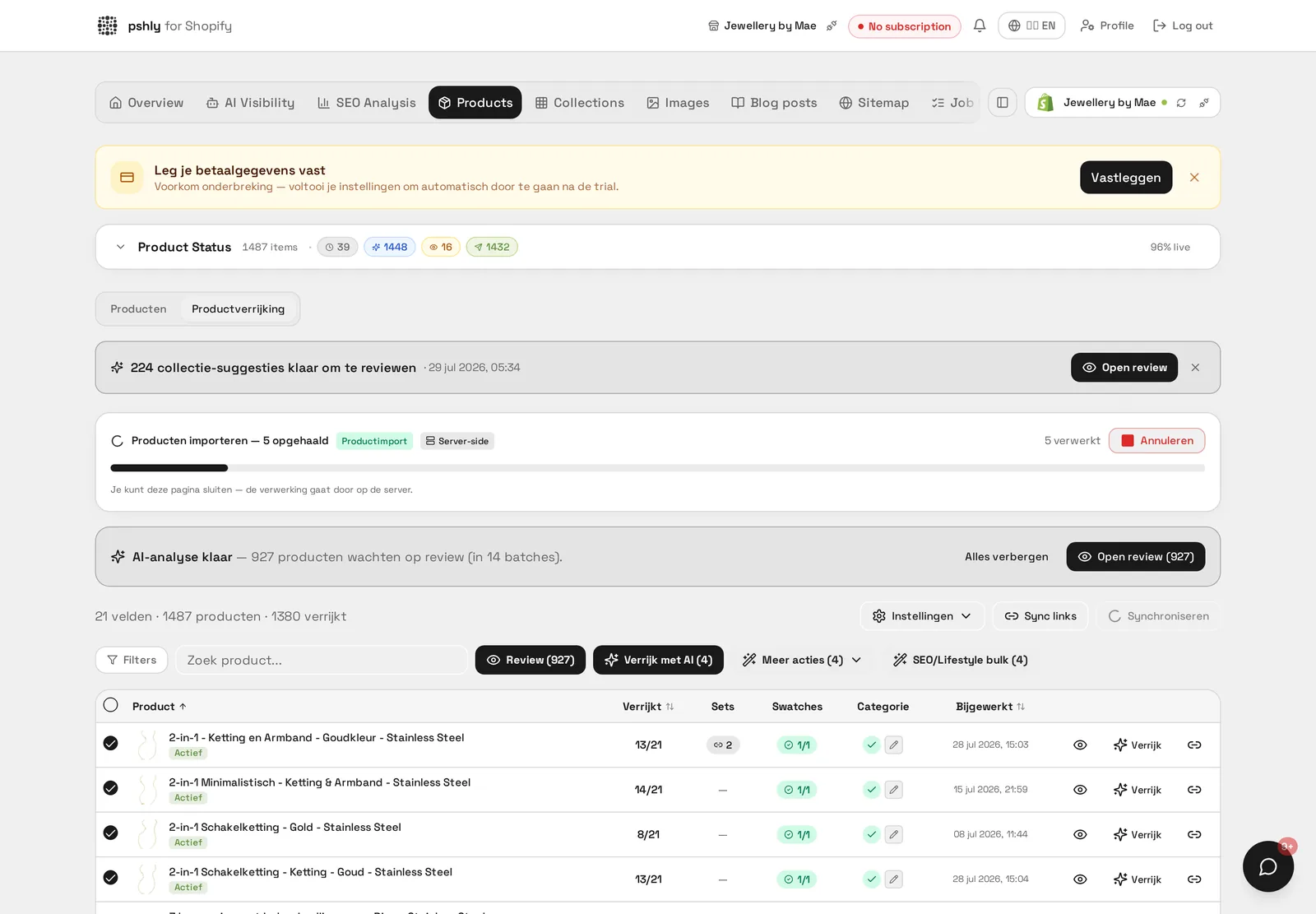
    Every bulk job produces results you review before anything is pushed to Shopify.

    • Content — titles, descriptions, SEO title and meta, with a diff against the current Shopify text.
    • Alt tags — generated alt text per image.
    • Collections — suggested collections per product, with a score.
    • Matching products — AI suggestions including imagery.
    • Lifestyle images — approve or reject each generated image.
    Review modals per job type

    Real-world example

    500 products with a diff view next to the old Shopify text. For G&F Verpakkingen, the shop manager could immediately see the difference per shipping box between the old, inconsistent description and the new version with size and flute type.

    By spot-checking 20 products first, the remaining 500 could be approved in bulk with confidence.


    3Bulk price updates

    Select products and choose More actions → Update prices. Three methods are available:

    • Fixed amount — increase or decrease by e.g. €2.00.
    • Percentage — e.g. +10% or −5%.
    • Fixed price — set all selected variants to the same amount.

    You see a preview of the new prices before confirming. For single products, use the variant price editor in the product detail view.

    Bulk price updates

    Real-world example

    Paper price correction: +0.25 euro on 180 products. Select the products, choose "More actions → Adjust prices", enter + 0.25 (or +5% / fixed price) and push to Shopify.

    Want them live immediately? Set the status to Active in the same flow — that always asks for confirmation first.


    4Setting products to Active (with confirmation)

    After pushing content you can set products to Active in Shopify in bulk.

    • Select products and choose More actions → Status → Active.
    • An extra confirmation step always shows how many products will go live.
    • Products that are already active are skipped.
    Setting products to Active (with confirmation)

    Real-world example

    48 draft shipping boxes set to Active in one go. After the new seasonal collection was enriched for G&F Verpakkingen, the team used "More actions → Status → Active" to publish the products together.

    The extra confirmation step prevented the products from accidentally going live before prices were checked.


    5Excluding products from optimisation

    Seasonal or temporarily offline products don't need to reappear in every review. There are two ways to exclude them:

    • Via a Shopify tag — add the tag pshly-skip (configurable under Settings → Shopify). Tags are picked up on every sync, so you can assign them in bulk in Shopify.
    • Manually in Pshly — via More actions → Exclude from optimisation, also for a whole selection.

    Excluded products get an Excluded badge, disappear from the work list and are filtered out of bulk jobs. Use the filter All / Active only / Excluded only to bring them back.

    Excluding products from optimisation

    Real-world example

    Christmas packaging in July. 48 seasonal products were offline but kept returning in every review. With the Shopify tag pshly-skip they disappear from all bulk jobs and review modals.

    Remove the tag in November and the next import picks them up again automatically.


    6Duplicate protection on pushes

    Pshly prevents the same content or image from reaching Shopify twice.

    • Repeated pushes of the same product within seconds are ignored server-side.
    • Lifestyle images that already have a Shopify image ID or status pushed are skipped.
    • Bulk jobs deduplicate their product list before starting.
    • Products deleted in Shopify are flagged as deleted in Shopify instead of failing the job.
    Duplicate protection on pushes

    Real-world example

    The same shipping box selected twice, one push executed. When a product for G&F Verpakkingen accidentally ended up in a bulk run twice, the debounce ignored the second push within seconds.

    The 512 product photos with an existing Shopify ID were also skipped, so no duplicate images ended up in the media library.