Documentation

    Shopify Sync & Push

    Import products and collections, and push optimized content back to your store.

    1Import & sync products

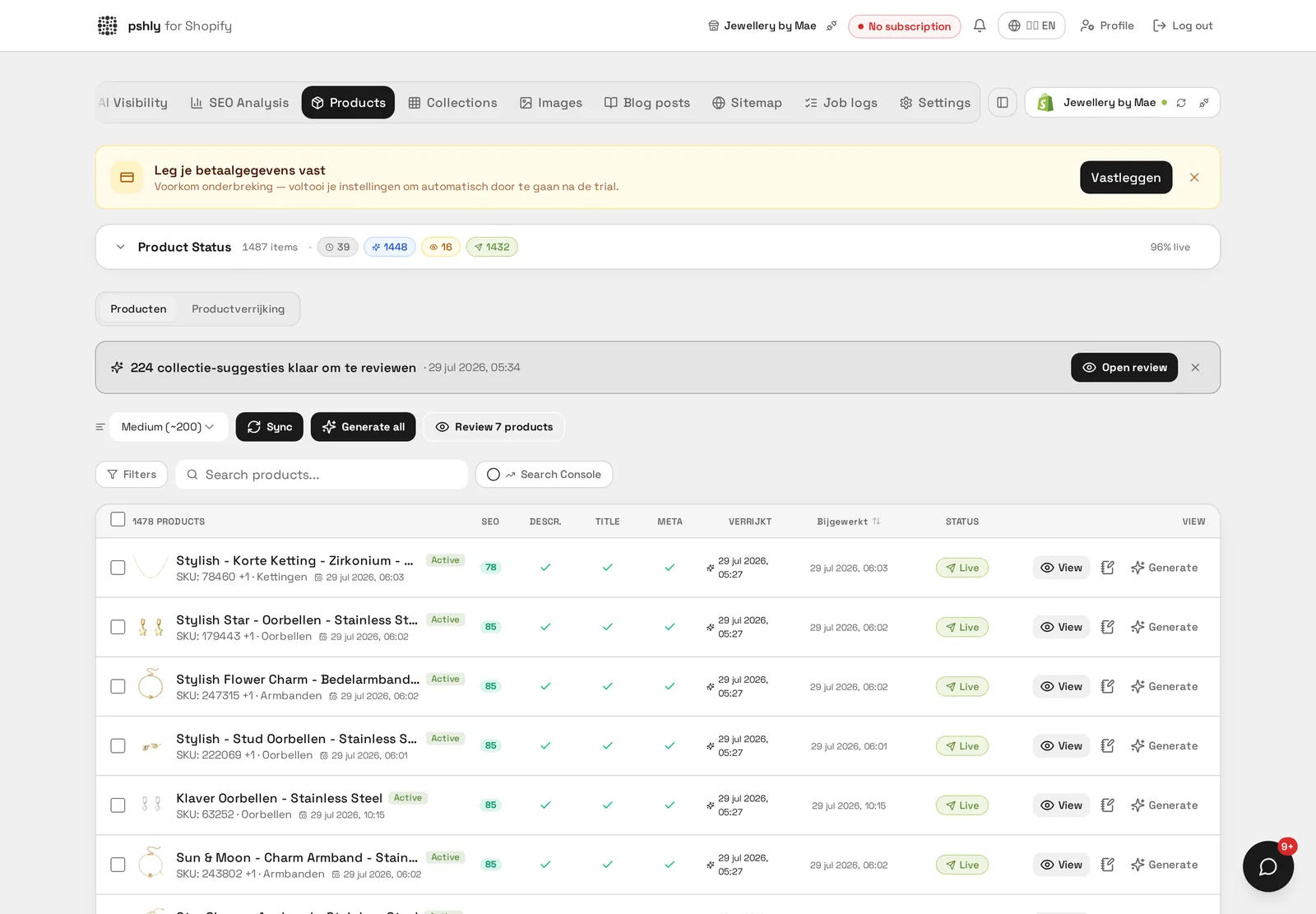
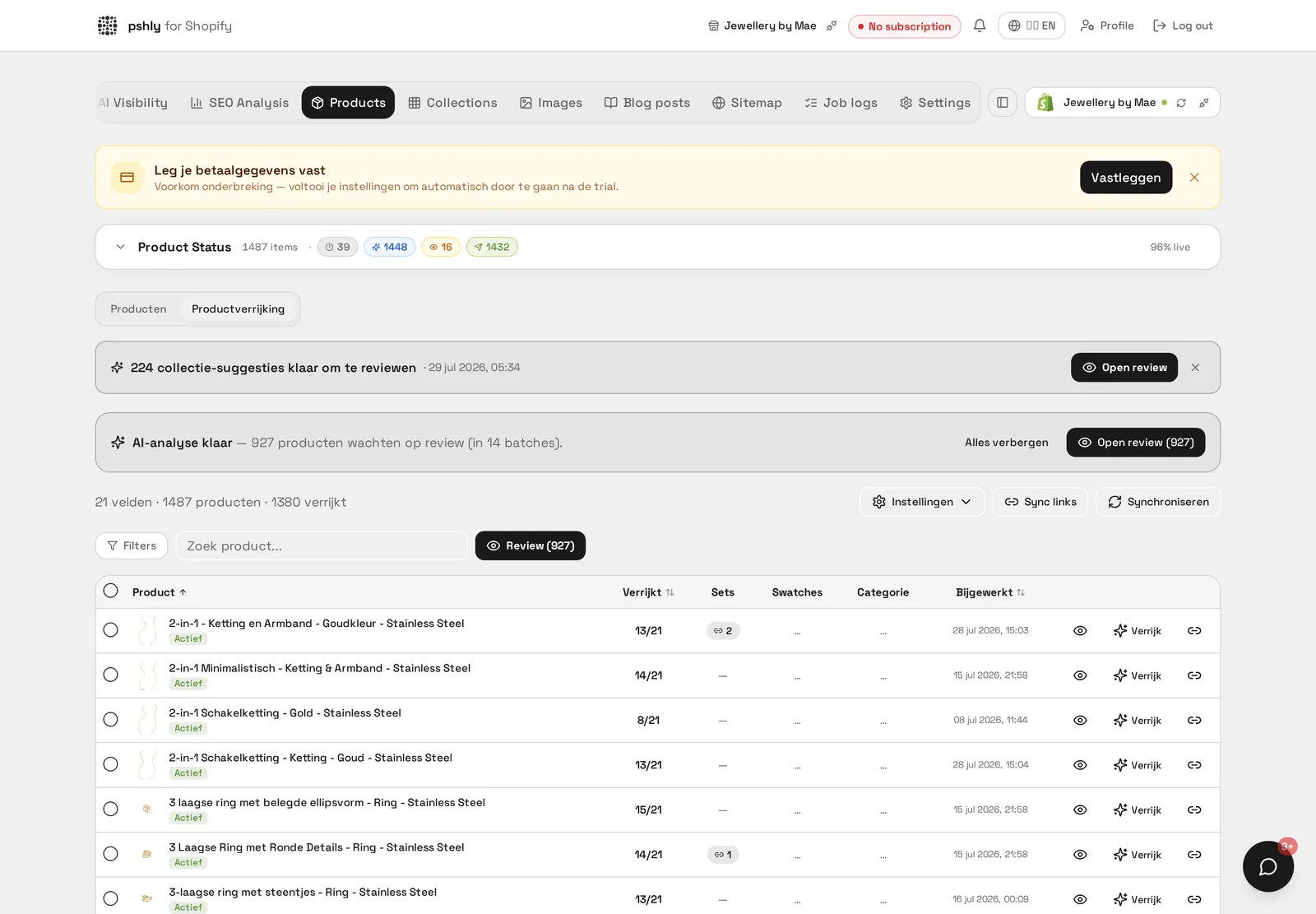
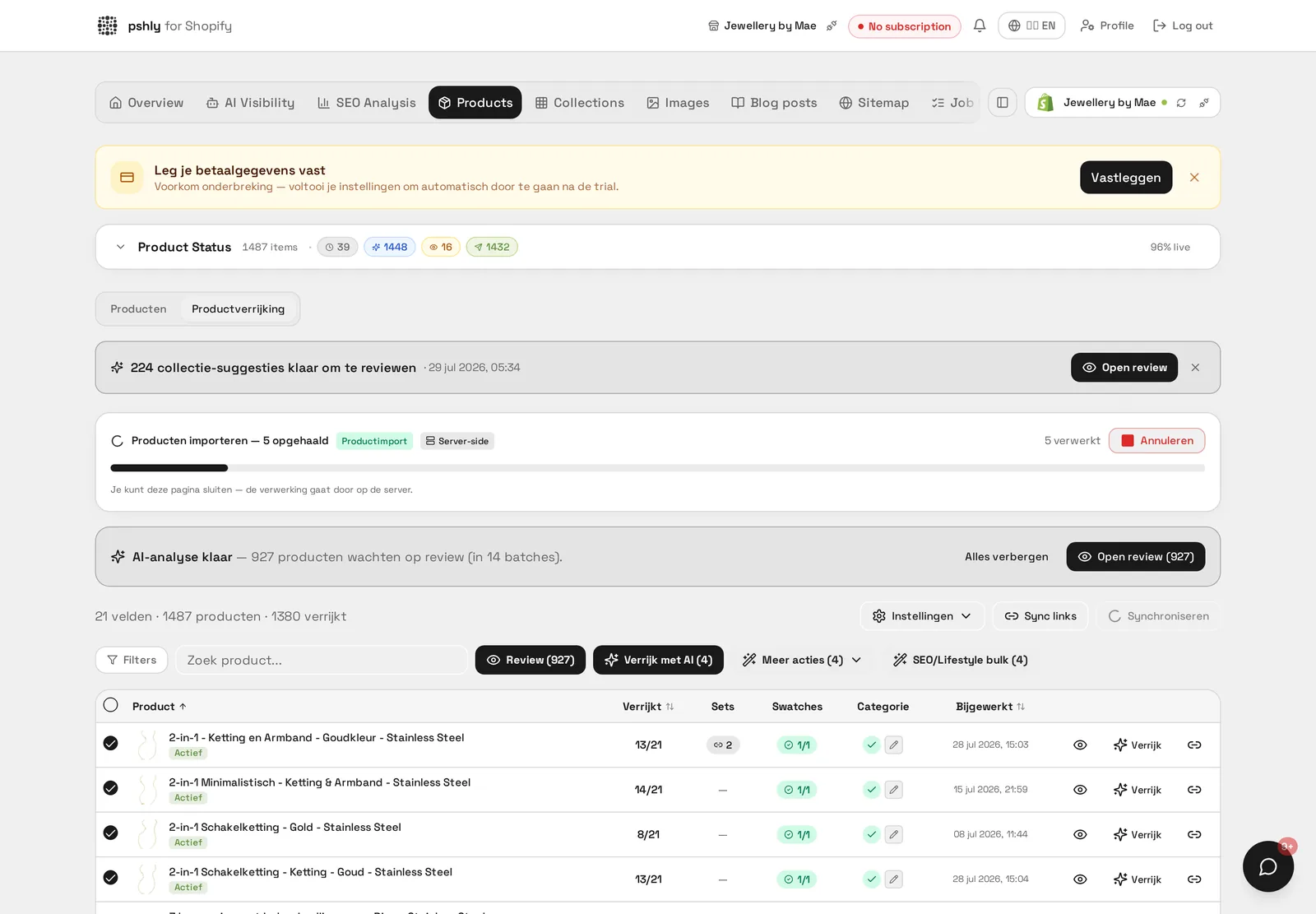
    Products are automatically imported when connecting your store. To sync manually:

    1. Go to Products.
    2. Click "Sync".
    3. New and modified products are fetched including title, description, images, variants, tags and SEO metadata.
    Import & sync products

    Real-world example

    512 products imported in 90 seconds. When connecting the store for G&F Verpakkingen, all shipping boxes, pallet covers and filler material were read in directly with title, price and current description.

    From that moment, one overview showed exactly which of the 512 products still lacked a usable description.
    2Import & sync collections

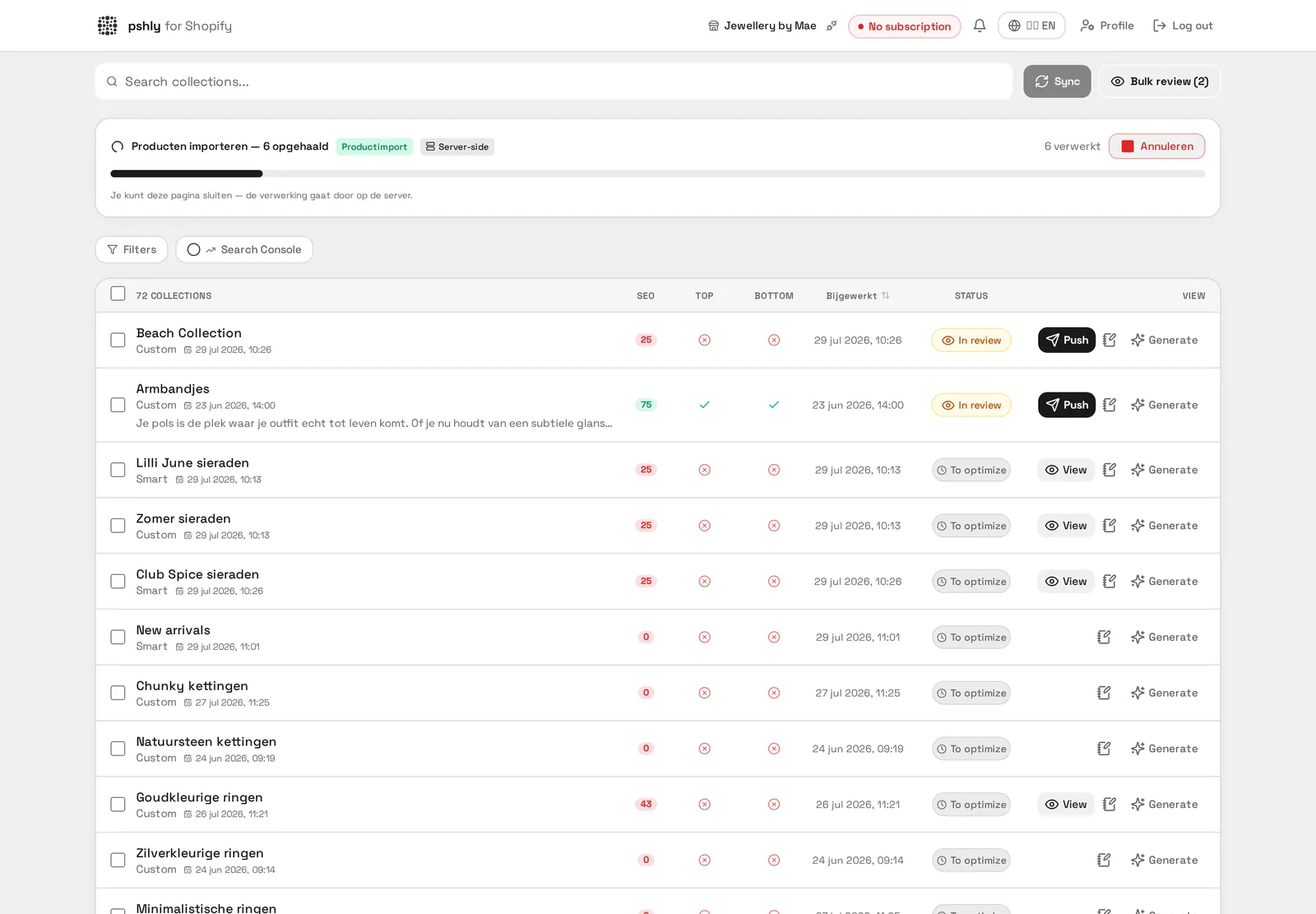
    Collections are imported together with products. During sync:

    • Collection type (manual/automatic) is fetched
    • Product count per collection is updated
    • Current description and metafield values are synced
    Import & sync collections

    Real-world example

    34 collections imported including existing structure. The import for G&F Verpakkingen kept the structure of "Single wall", "Double wall" and "Pallet covers", so there was no need to rebuild from scratch.

    That saved a full day of manual work compared to recreating collections in Pshly.ai.


    3Push content to Shopify

    After approving generated content, push to Shopify:

    1. Open a product or collection with approved content.
    2. Click "Push to Shopify".
    3. Description, SEO title and meta description are updated immediately.

    Note: Pushing requires an active paid subscription.

    Push content to Shopify

    Real-world example

    100 products in one push to Shopify. After approval in the review, G&F Verpakkingen pushed through the first batch of 100 shipping boxes in one go, including title, description, SEO title and meta description.

    The push ran in the background, so the team could already start on the next batch in the meantime.


    4Bulk push actions

    Bulk push sends approved content for multiple items to Shopify at once.

    1. Select the approved items.
    2. Click "Bulk push".
    3. The progress bar shows status per item.

    Failed pushes are logged and can be retried.

    Bulk push actions

    Real-world example

    180 products in one push. Only approved fields are included; per product you see up front what changes.

    If the URL handle of an active product changes, Pshly automatically creates a 301 redirect in Shopify — 41 of them in this run, without losing rankings.


    5Content versions & history

    Every version of generated content is saved.

    • Open an item and click "Version history".
    • View previous versions with timestamp and source.
    • Compare versions with the diff view.
    Content versions & history

    Real-world example

    Reverted to the previous description of a shipping box. When it turned out for G&F Verpakkingen that a new title contained the wrong dimension, the content history was used to easily roll back to the previous, correct version.

    Without this version history, the old text would have had to be rewritten by hand.


    6Change log

    The change log tracks what content was modified:

    • Change type (generation, push, manual edit)
    • Old and new values
    • Date and time

    Available in the "Changelog" panel.

    Change log

    Real-world example

    512 changes traceable in one overview. The team at G&F Verpakkingen used the changelog to check who had edited which description and when it had been pushed to Shopify.

    This made it possible to quickly trace when a specific title change had taken place.


    7Automatic 301 redirects

    When the URL handle of an active product changes, Pshly immediately creates a 301 redirect in Shopify from the old to the new URL.

    • Visitors and Google land on the new page automatically.
    • Find them in Shopify under Online Store → Navigation → URL Redirects.
    • Draft products need no redirect — they aren't indexed yet.
    Automatic 301 redirects

    Real-world example

    480 automatic 301 redirects when rewriting URLs. When G&F Verpakkingen had the handles for their shipping boxes optimised, old links such as /products/large-box kept working via a redirect to the new URL.

    As a result, no existing Google ranking or external link was lost while cleaning up the catalog.


    8Products deleted in Shopify

    If a product was deleted in Shopify but still exists in Pshly, a push used to fail.

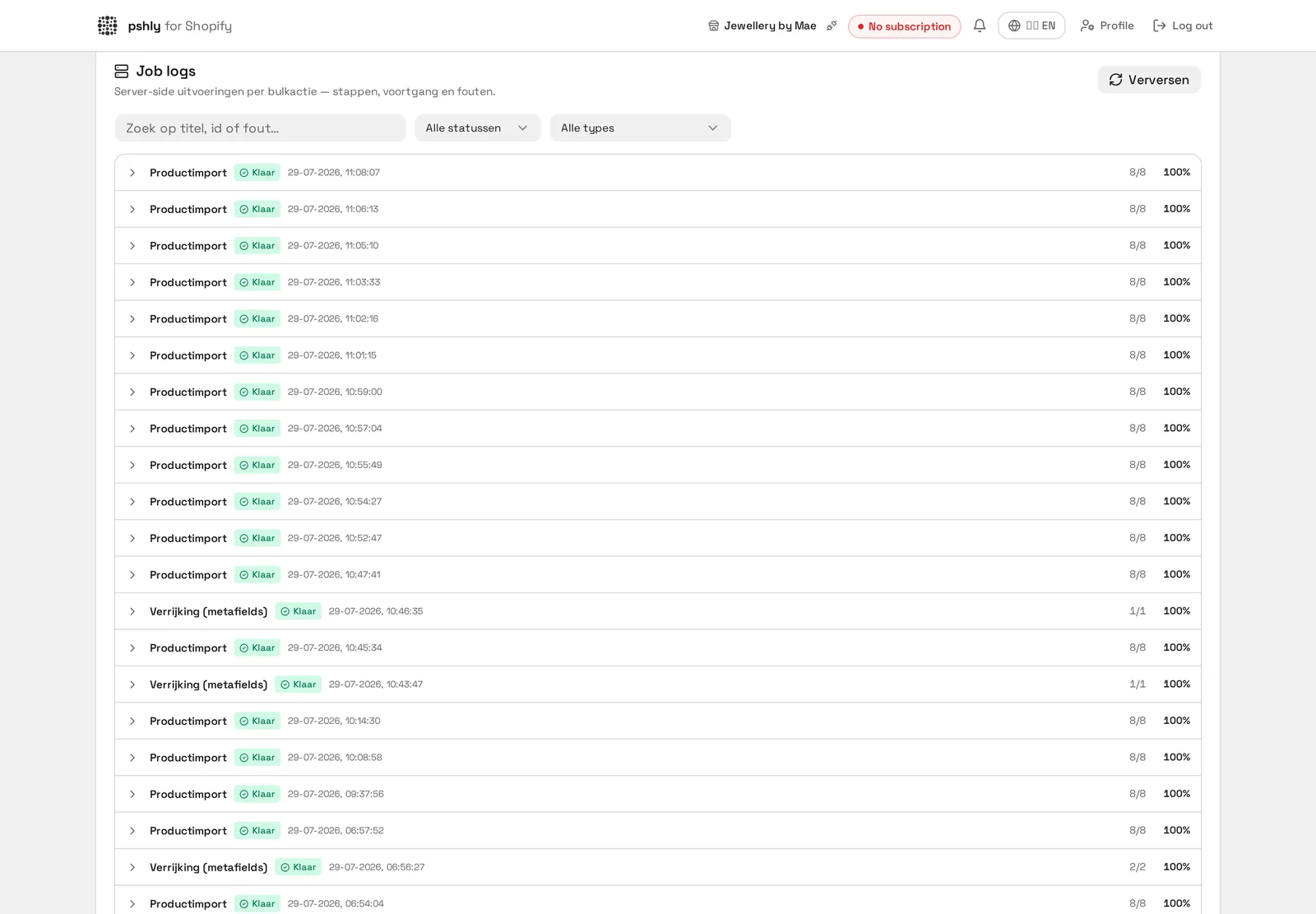
    Pshly now marks it as deleted in Shopify, skips it and completes the rest of the batch. You'll see this in the job logs.

    Products deleted in Shopify

    Real-world example

    8 deleted shipping boxes automatically removed from the queue. When G&F Verpakkingen deleted a few outdated sizes from Shopify, these products were recognised on the next sync and no longer included in bulk runs.

    This prevented error messages when trying to push content to products that no longer existed.


    9Syncing tags

    Every import or refresh also pulls in your products' Shopify tags.

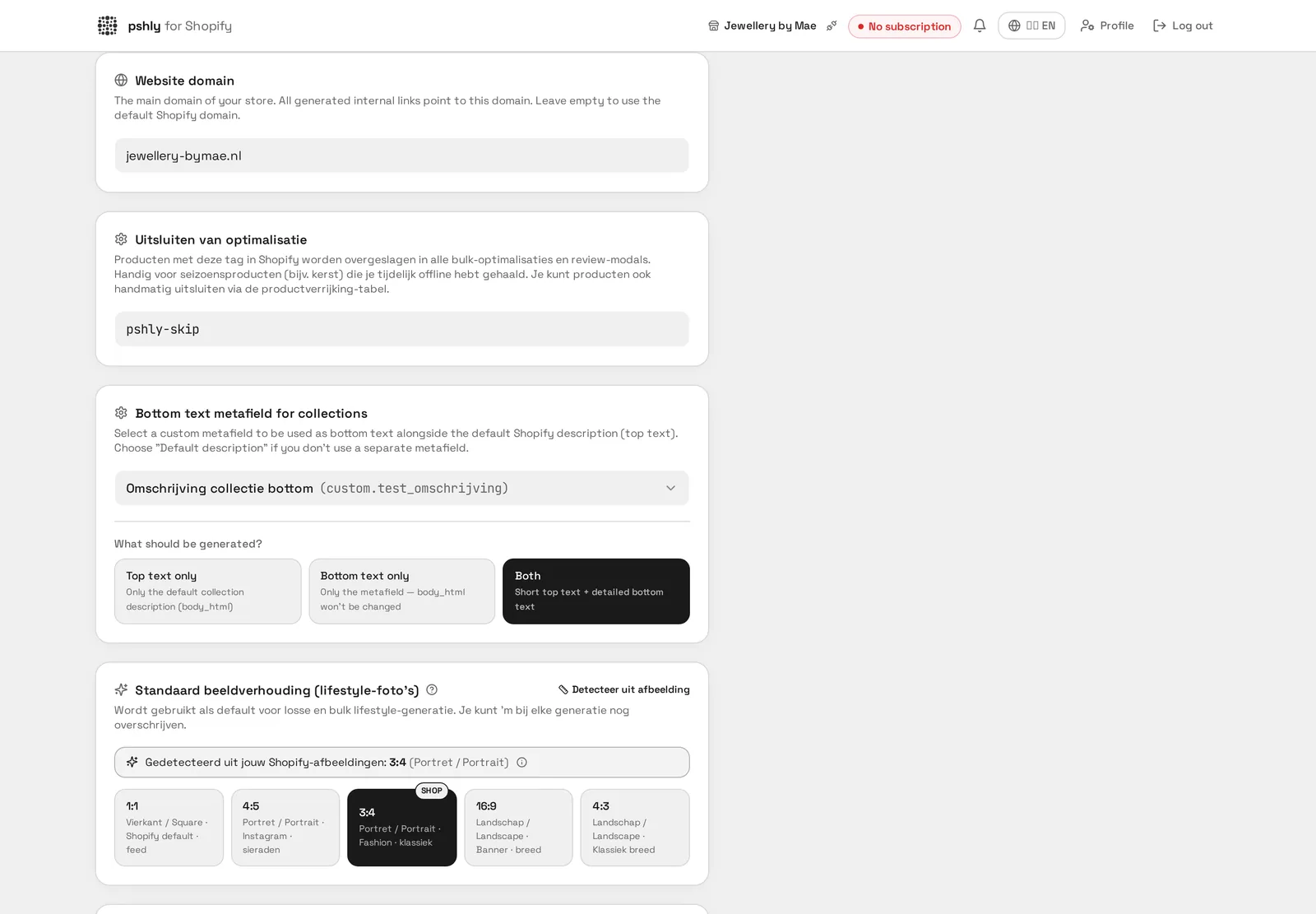
    • Tags drive automatic exclusion from optimisation (see the skip tag).
    • Assign tags in bulk in Shopify; Pshly picks them up on the next sync.
    • A manual exclusion in Pshly always wins and is never overwritten by tag sync.
    Syncing tags

    Real-world example

    Tag "season-2024" automatically synced back to Shopify. For G&F Verpakkingen, Shopify tags on shipping boxes were preserved while rewriting content, so existing filters in the webshop kept working.

    This prevented the 48 seasonal products from accidentally disappearing from their own Shopify filter.